PikaShow on Chromecast
Tired of watching movies and TV shows on that tiny phone screen? Your living room could be so much better. With PikaShow and Chromecast together, you can turn your regular TV into an entertainment hub, and the best part? It costs almost nothing to set up.
Let me walk you through exactly how to use PikaShow with Chromecast, why it’s worth doing, and how to fix common problems along the way.
What Exactly Is Chromecast?
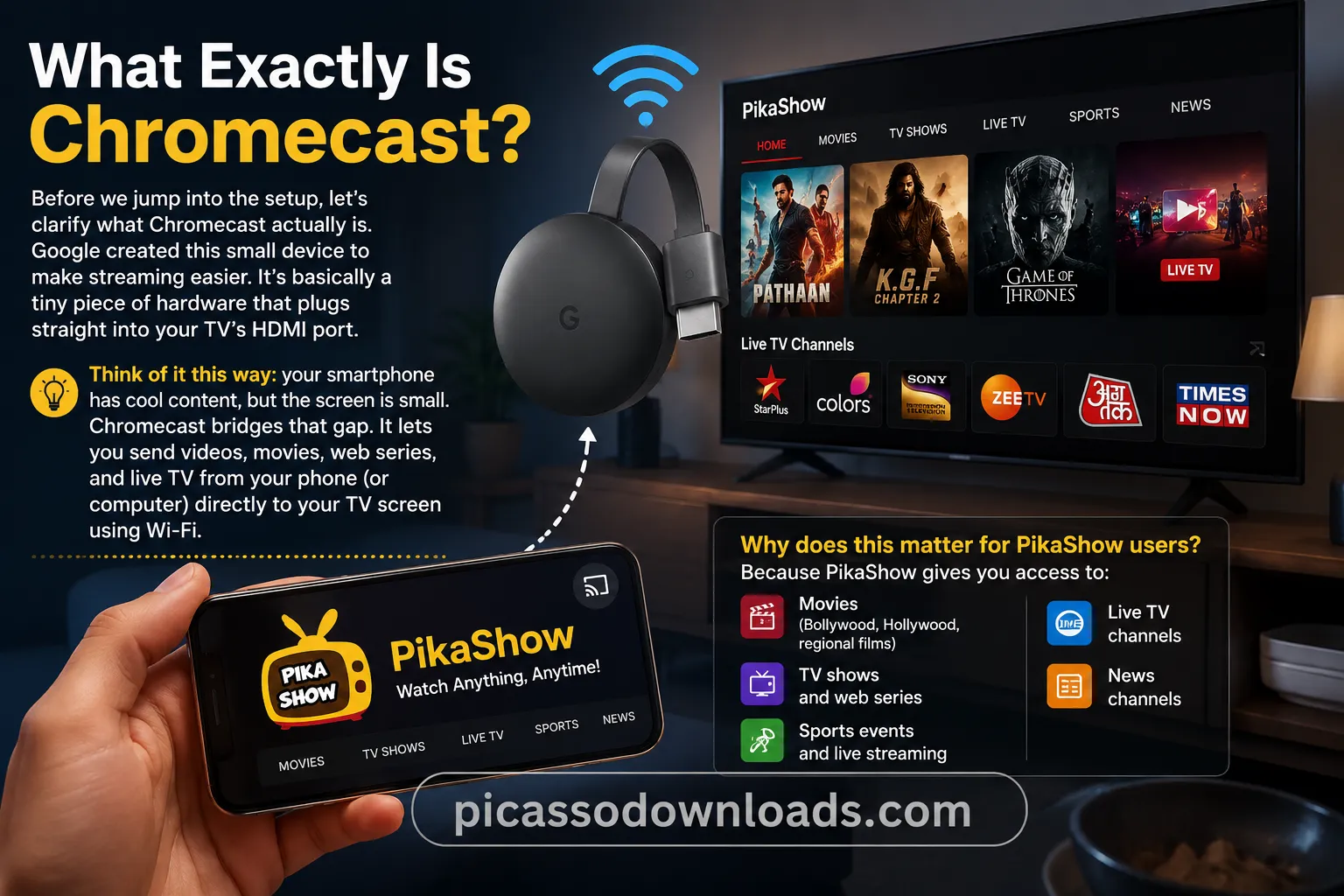
Before we jump into the setup, let’s clarify what Chromecast actually is. Google created this small device to make streaming easier. It’s basically a tiny piece of hardware that plugs straight into your TV’s HDMI port.
Think of it this way: your smartphone has cool content, but the screen is small. Chromecast bridges that gap. It lets you send videos, movies, web series, and live TV from your phone (or computer) directly to your TV screen using Wi-Fi.
Why does this matter for PikaShow users? Because PikaShow gives you access to:
- Movies (Bollywood, Hollywood, regional films)
- TV shows and web series
- Live TV channels
- Sports events and live streaming
- News channels
But watching all this on a 6-inch phone screen isn’t ideal. Chromecast solves that problem.
Benefits of Using Chromecast with PikaShow
Watch on a Bigger Screen
This is obvious, but worth saying: watching a movie on your TV is way better than watching on your phone. The difference between a 5-inch phone screen and a 55-inch TV screen is huge. Colors look richer. Details pop. You actually feel the action in movies.
High-Quality Streaming
Chromecast doesn’t compress or downgrade your video quality. You get high-resolution content exactly as PikaShow streams it. That means:
- Full HD and HD quality options (depending on your internet)
- Sharp, clear images
- Proper colors without distortion
Super Simple Setup
You don’t need to be a tech expert. No complicated wiring. No confusing software. Plug Chromecast into HDMI, connect to Wi-Fi, and you’re basically done. If you can download an app, you can set this up.
Control from Your Phone
Here’s something cool: your smartphone becomes the remote control. You control playback, volume, and settings directly from your phone. No need for extra remotes or complicated controls. Everything is intuitive.
It’s Affordable
Compared to buying a smart TV or expensive streaming devices, Chromecast is incredibly cheap. It transforms a basic TV into a smart streaming device without breaking the bank.
Works with Everything
Have an Android phone? It works. Have an iPhone or iPad? It still works. Already have a Mac or Windows computer? Still works. Chromecast doesn’t discriminate.
PikaShow on Chromecast setup
Alright, let’s get into the actual setup. There are different methods depending on your Chromecast version. I’ll show you both approaches.
Method 1: Casting from Your Smartphone (Easiest Way)
This is the most common method, and honestly, it’s the easiest.
What you need:
- Chromecast device
- TV with HDMI port
- Stable Wi-Fi connection
- PikaShow app installed on your phone
- Phone and Chromecast on the same Wi-Fi network
Steps:
- Plug in your Chromecast: Connect it to your TV’s HDMI port and a power outlet. Wait for it to initialize (about 30 seconds).
- Connect Chromecast to Wi-Fi: Follow the on-screen instructions or use Google Home app to set up your Chromecast on your home Wi-Fi.
- Make sure your phone is on the same Wi-Fi: This is important—both devices need to be on the same network.
- Open the PikaShow app: and pick a movie, TV show, or live channel you want to watch.
- Look for the Cast icon: It usually looks like a TV with a Wi-Fi symbol. Tap it.
- Select your Chromecast device: from the list that appears.
- Done: Within a few seconds, your content will appear on your TV.
You can now play, pause, adjust volume, and skip episodes directly from your phone.
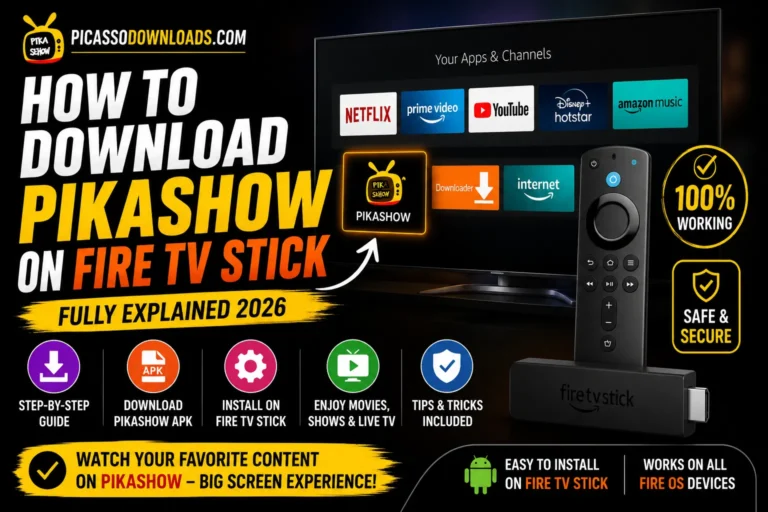
Method 2: Sideloading PikaShow on Chromecast with Google TV
If you have a Chromecast with Google TV (the one with a remote), you can install PikaShow directly on the device.
Steps:
Enter Developer Mode on your Chromecast:
Go to Settings → System → About
Click on “Android TV OS build” exactly 7 times
You’ll see a message saying “Developer mode enabled”
Install the Downloader App:
Click Home button on your remote
Go to Apps → Search for Apps
Search “Downloader” and install it
Enable Unknown Sources:
Go back to Settings
Navigate to Security & Restrictions
Turn on “Install unknown apps” for the Downloader app
Download PikaShow APK:
Open Downloader
In the address bar search Aptoide
Download Aptoide TV (an app store)
Find and Install PikaShow:
Open Aptoide TV
Search for “PikaShow“
Click Install
Give it storage and network permissions
Start Streaming:
Open PikaShow directly on your Chromecast
Browse movies, TV shows, and live TV
Start watching immediately
This method is more complex but gives you direct access to PikaShow on your TV without needing your phone.
What You Need Before Starting
Let me save you time by listing exactly what you need:
| What You Need | Details |
|---|---|
| Chromecast Device | Original Chromecast, Chromecast Ultra, or Chromecast with Google TV (all work) |
| TV with HDMI Port | Any modern TV has this |
| Internet/Wi-Fi | Must be stable (minimum 2-3 Mbps for HD quality) |
| PikaShow App | Installed on your Android phone |
| Google Home App(Optional) | Optional, but helpful for initial setup |
| Smartphone/Tablet | To control and cast content |
Conclusion
Forget phone screens ,Chromecast+PikaShow is the dream combo for any movie lover. Setup takes minutes, costs almost nothing, and gives you theater-like experience at home. Your TV deserves better content, and your eyes deserve a bigger screen. We’ve covered everything from installation to troubleshooting, so you have no excuses now. Whether it’s Bollywood blockbusters, Hollywood hits, or your favorite web series, watch it the way it’s meant to be watched.